How to Create a Highly Customizable Carousel Using Supergrow?
Overview
Supergrow's advanced Carousel Maker lets you build fully branded, multi-slide LinkedIn carousels from scratch. You can customize fonts, colors, images, and layout for every slide , then export or publish directly to LinkedIn.
Accessing the Carousel Maker
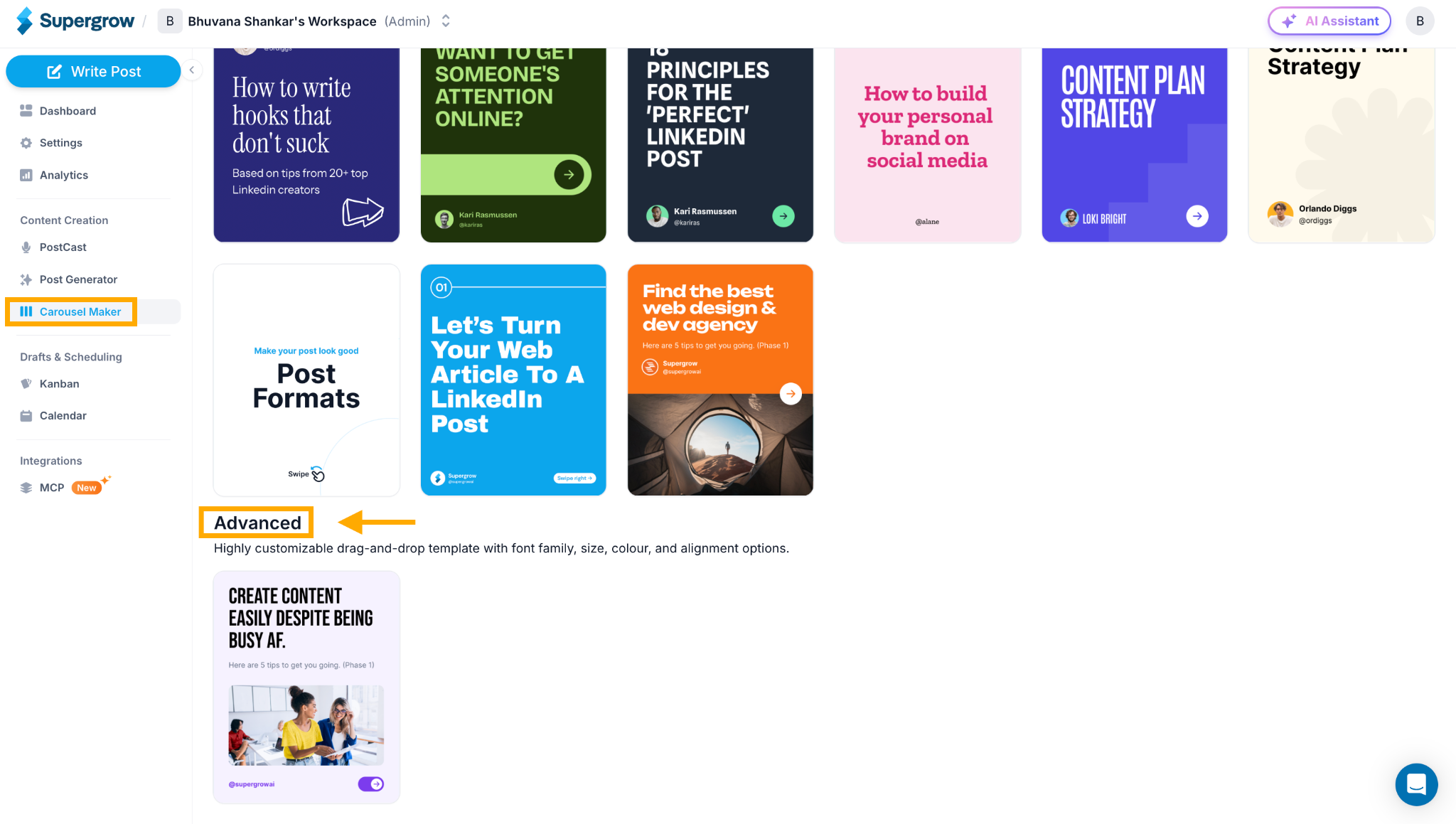
Step 1: Navigate to Carousel Maker
Click Carousel Maker in the left sidebar under "Content Creation"
Scroll down to the Advanced section
Click on the Advanced template, described as "Highly customizable drag-and-drop template with font family, size, colour, and alignment options"
This opens the advanced carousel editor
Setting Up Your Brand Kit
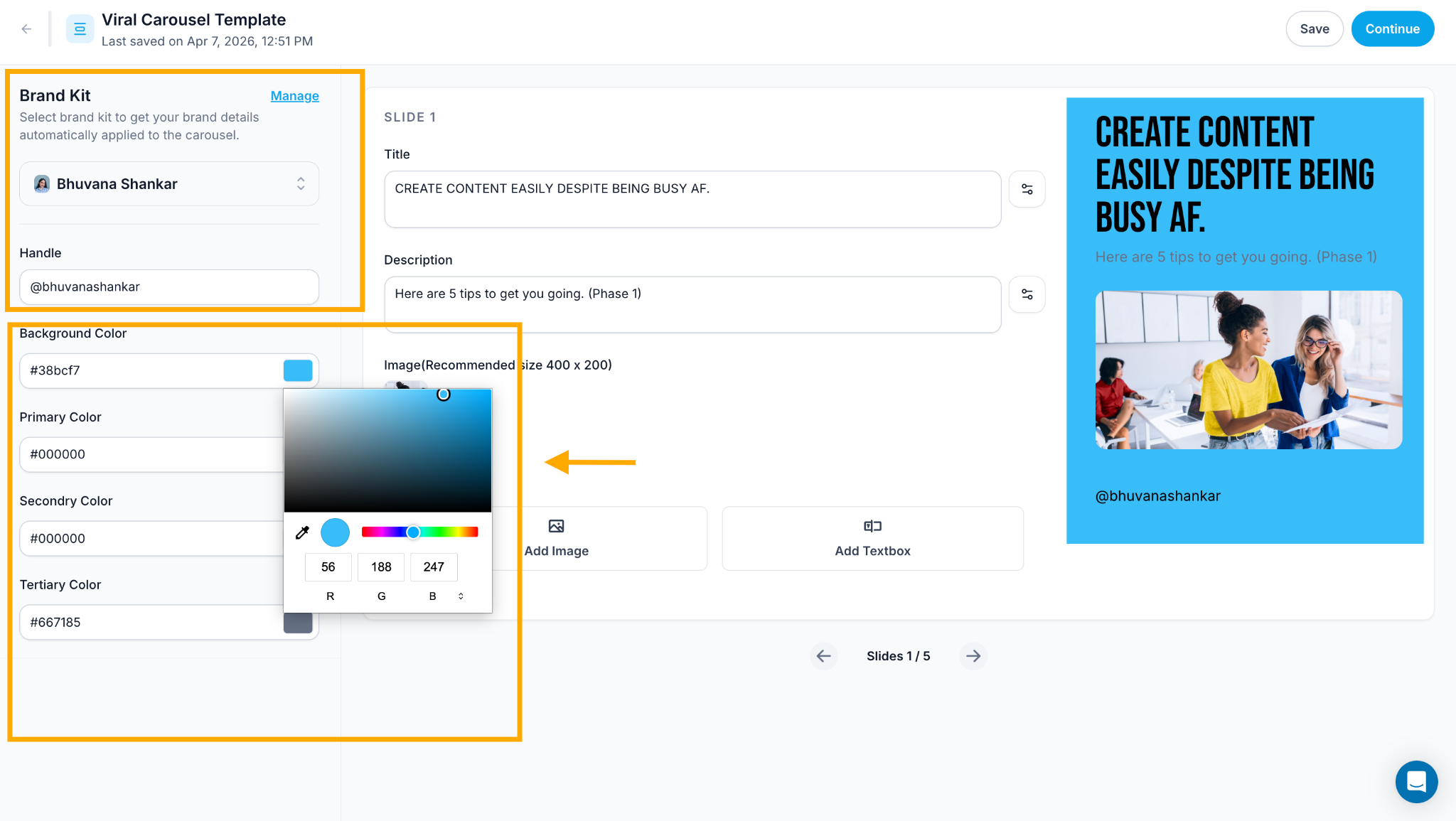
Step 2: Configure Your Brand Colors
In the Brand Kit panel on the left, set up your brand identity:
Background Color : the base color for all slides
Primary Color : used for main text
Secondary Color : used for accents and CTA buttons
Tertiary Color : used for supporting elements
Click any color swatch to open the RGB color picker. Click Manage to save your brand kit for future reuse.
Building Your Slides
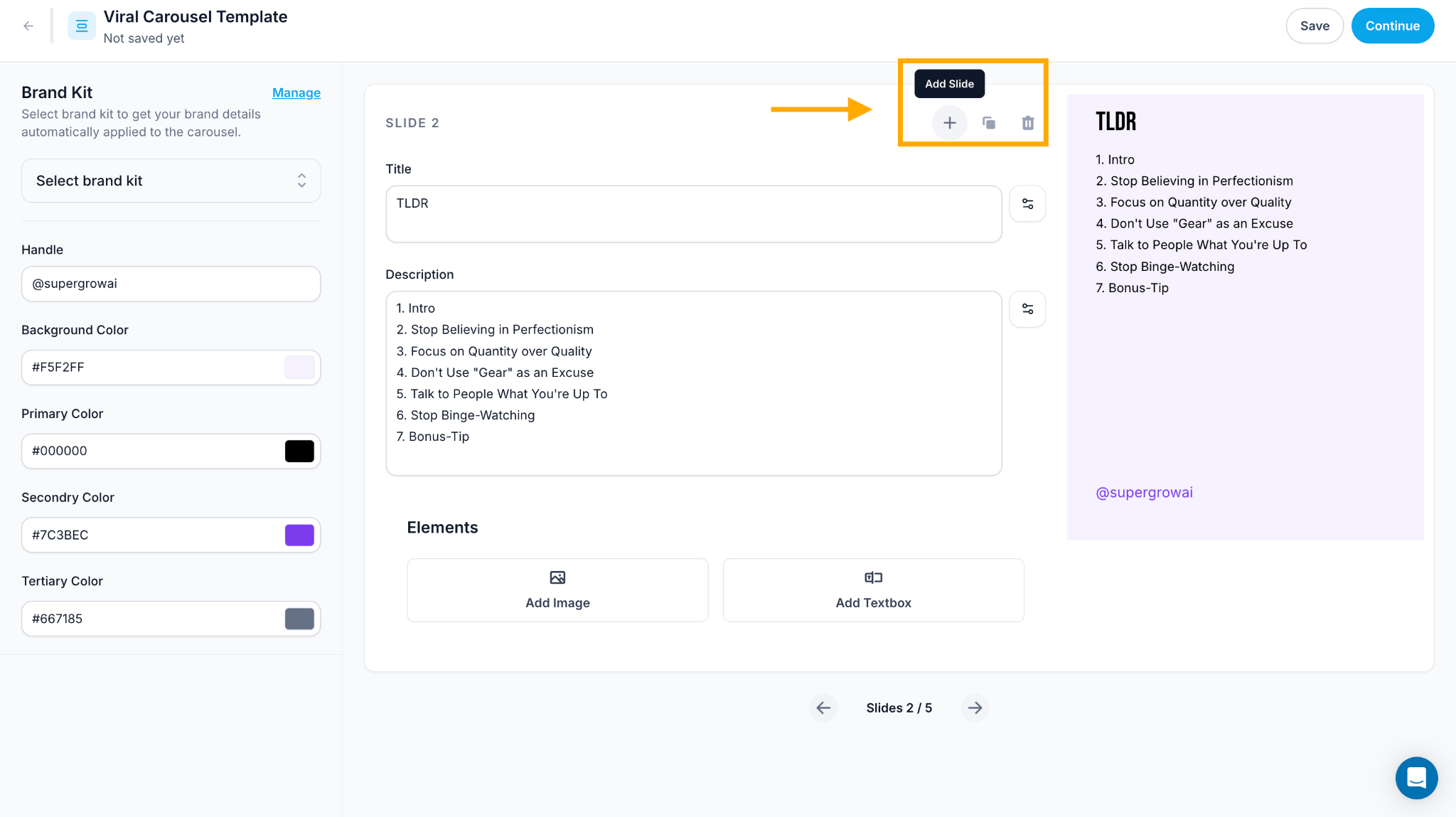
Navigate between slides using the ← Slides X / 5 → controls at the bottom of the page. On each slide, you can also:
Add a new slide : Click the + icon next to the slide header
Duplicate a slide : Click the duplicate icon to copy the current slide
Delete a slide : Click the trash icon to remove the current slide
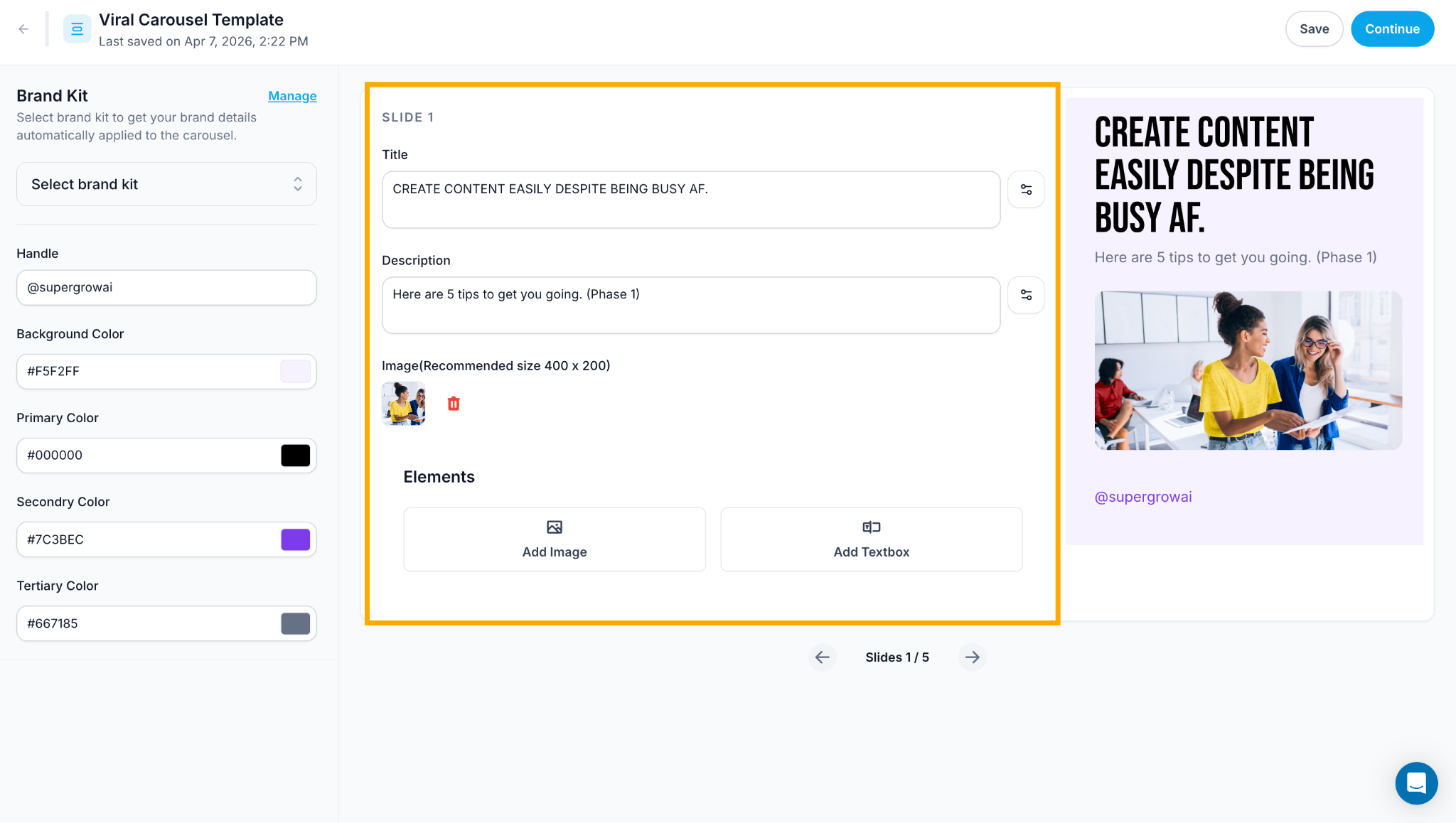
Slide 1 : Cover Slide
Enter your headline in the Title field
Add a supporting subtitle in the Description field
Upload a cover image (recommended size: 400 × 200px)
Optionally add a second image block and an additional Title below it
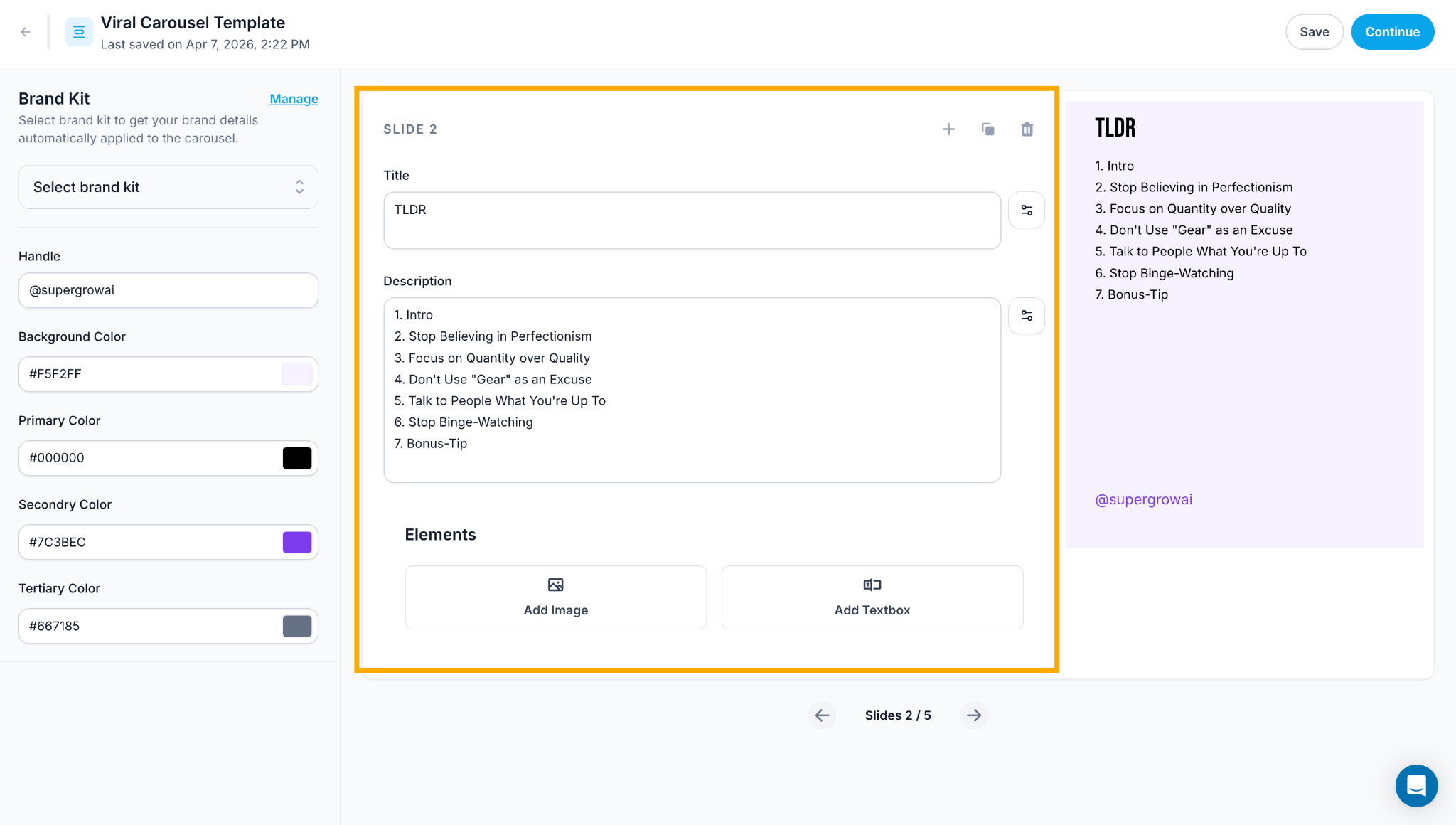
Slide 2 : TLDR Slide
Enter TLDR as the Title
List all your upcoming slide topics as a numbered list in the Description field
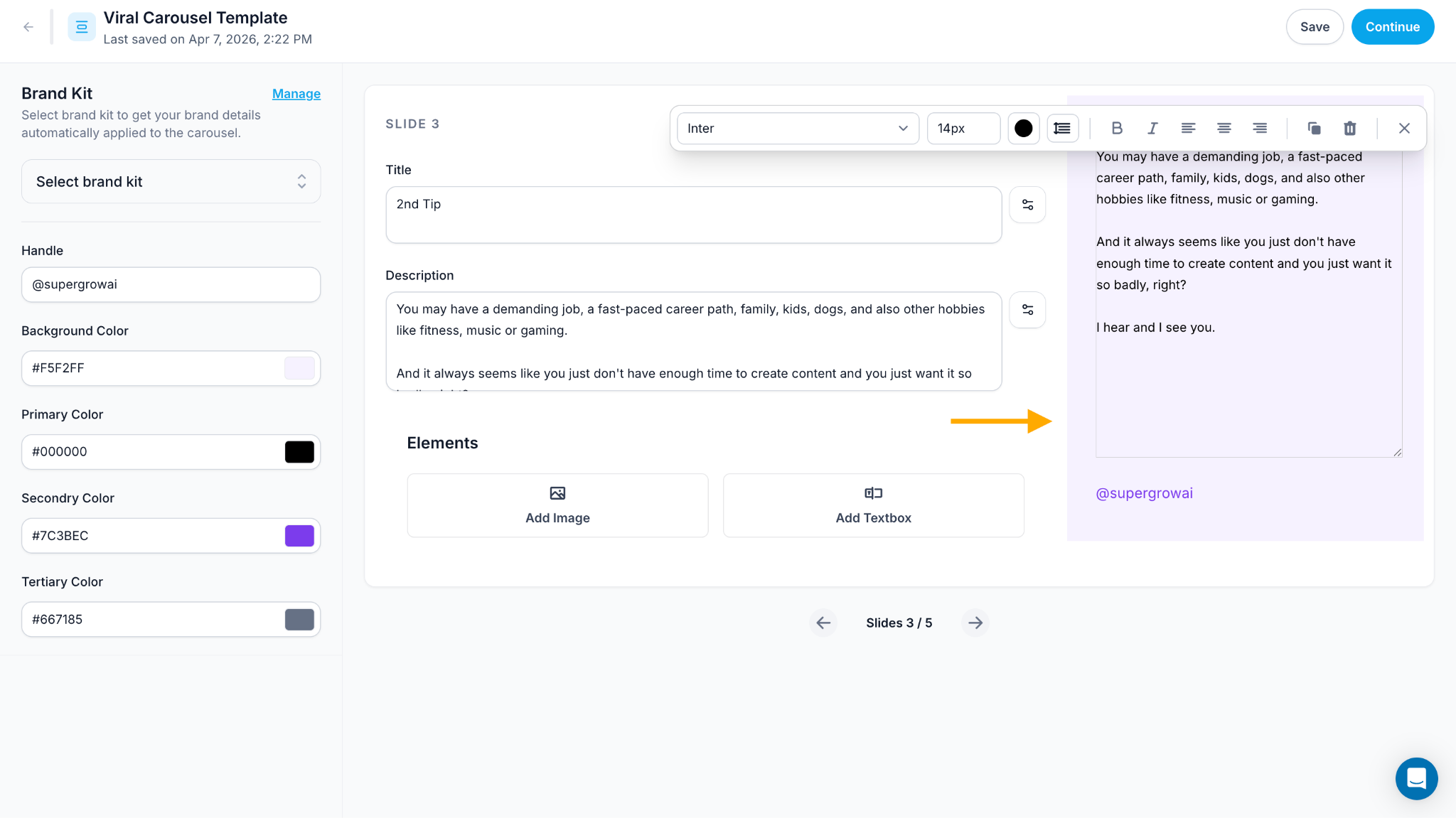
Slides 3 – 4 : Content Slides
Enter the slide title in the Title field
Write your body copy in the Description field
Add images as needed (recommended size: 400 × 200px)
Use the Elements section to add extra blocks:
Add Image : insert an additional image
Add Textbox : overlay a custom text element
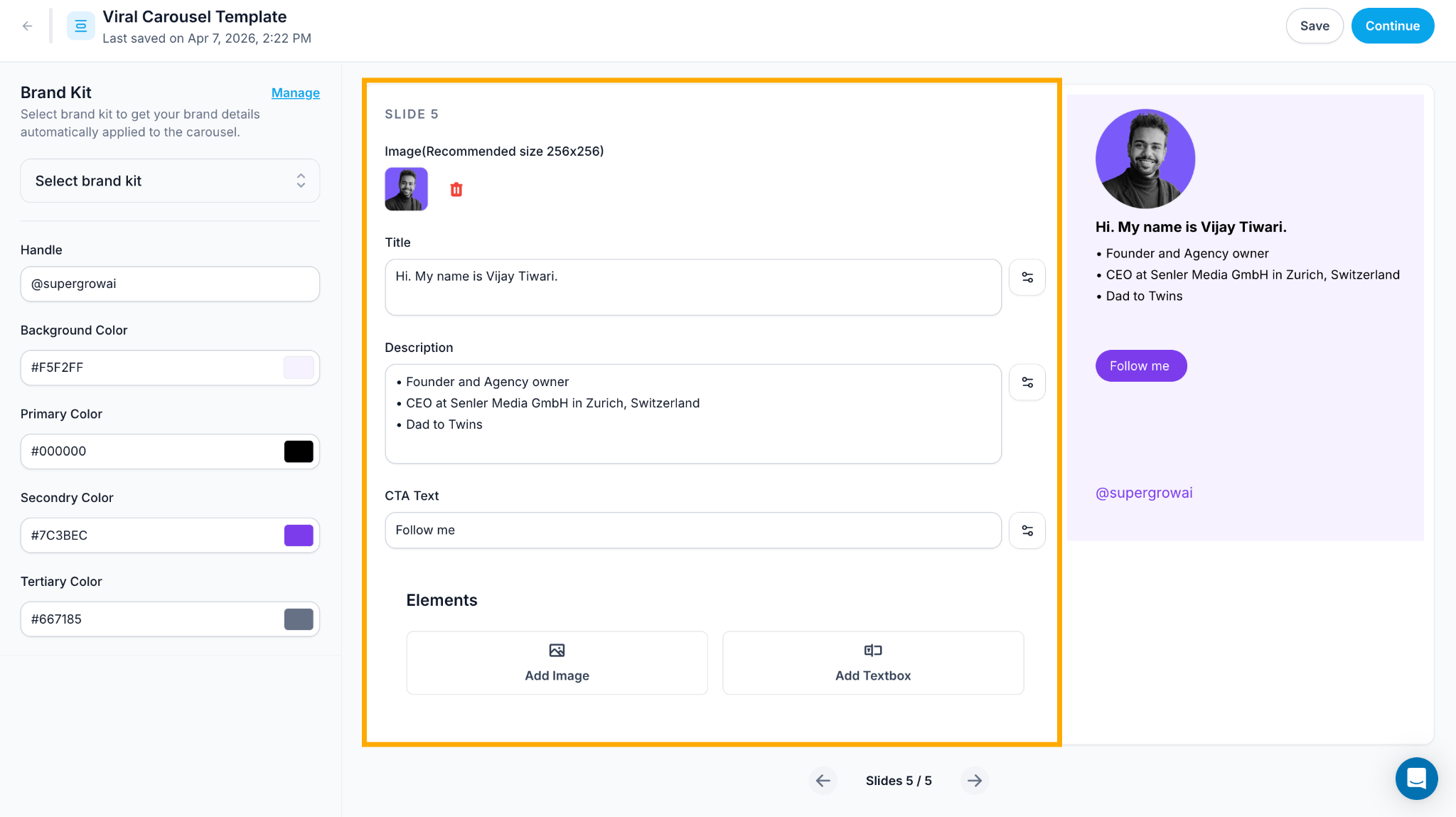
Slide 5 : CTA / About Me Slide
Upload your profile photo (recommended size: 256 × 256px)
Enter your name in the Title field
Add your credentials as bullet points in the Description field
Enter your call-to-action text in the CTA Text field
Previewing & Exporting
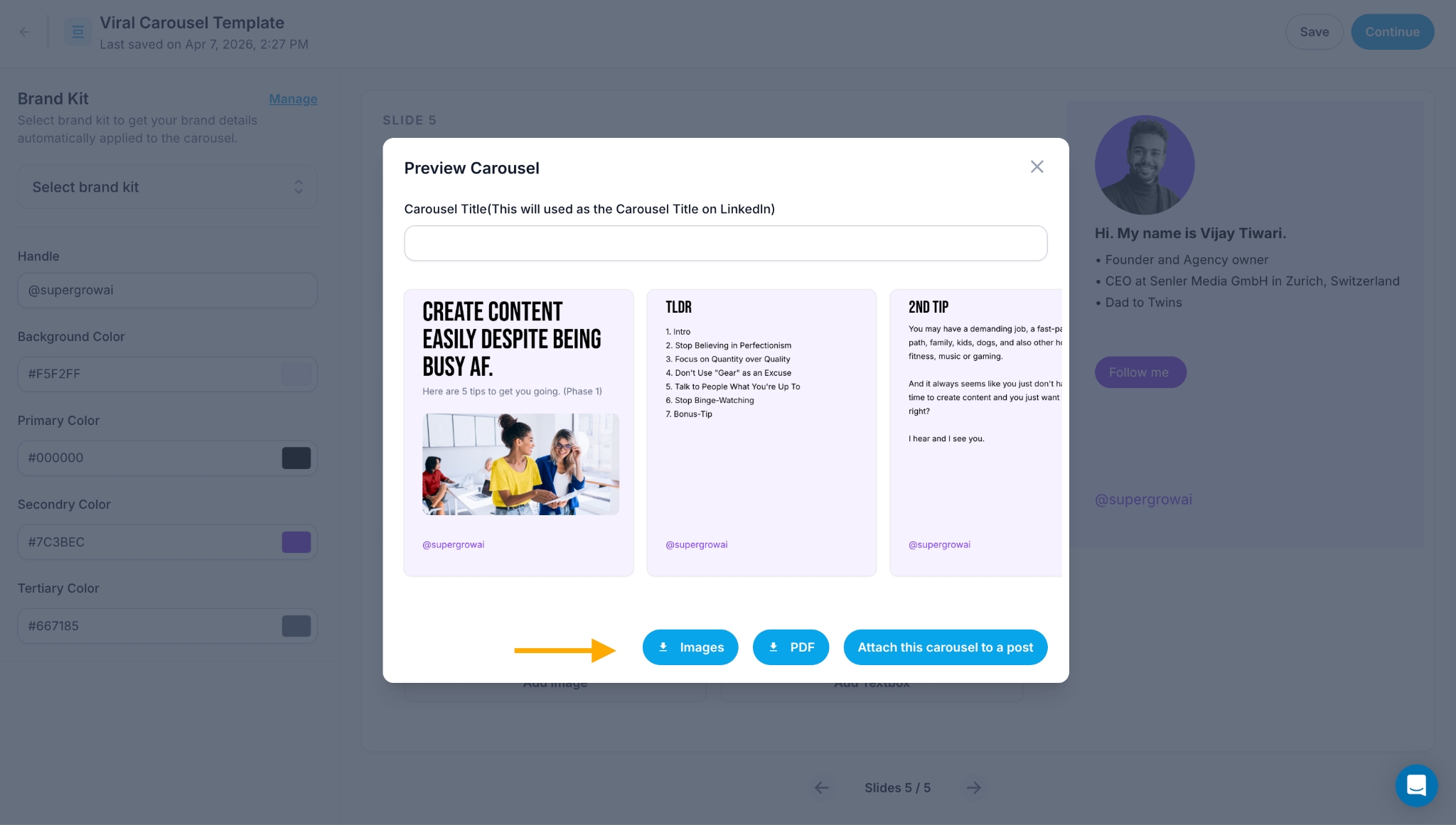
Step 3: Preview All Slides
Click Continue in the top right corner
The Preview Carousel modal opens showing all slides side by side
Enter a Carousel Title : this will be used as the post title on LinkedIn
Step 4: Export or Publish
Images : Download all slides as individual image files
PDF : Download the full carousel as a PDF
Attach this carousel to a post : Opens the post composer with the carousel pre-attached