Getting Started with Carousel Maker
Overview
LinkedIn carousels consistently outperform regular posts, they stop the scroll and drive 3-5x more engagement. But creating professional carousels usually requires design skills and external tools.
Supergrow's Carousel Maker lets you create stunning, on-brand LinkedIn carousels in minutes with customizable templates and seamless publishing, no design experience needed.
What You'll Learn
How to select and customize carousel templates
How to add content and manage slides
How to apply your branding with the Brand Kit
How to preview, download, and publish carousels
Before You Start
LinkedIn account connected to Supergrow
Content outline - Know what 5-10 key points you want to share
Brand colors (optional but recommended)
Step-by-Step Guide
Step 1: Access the Carousel Maker
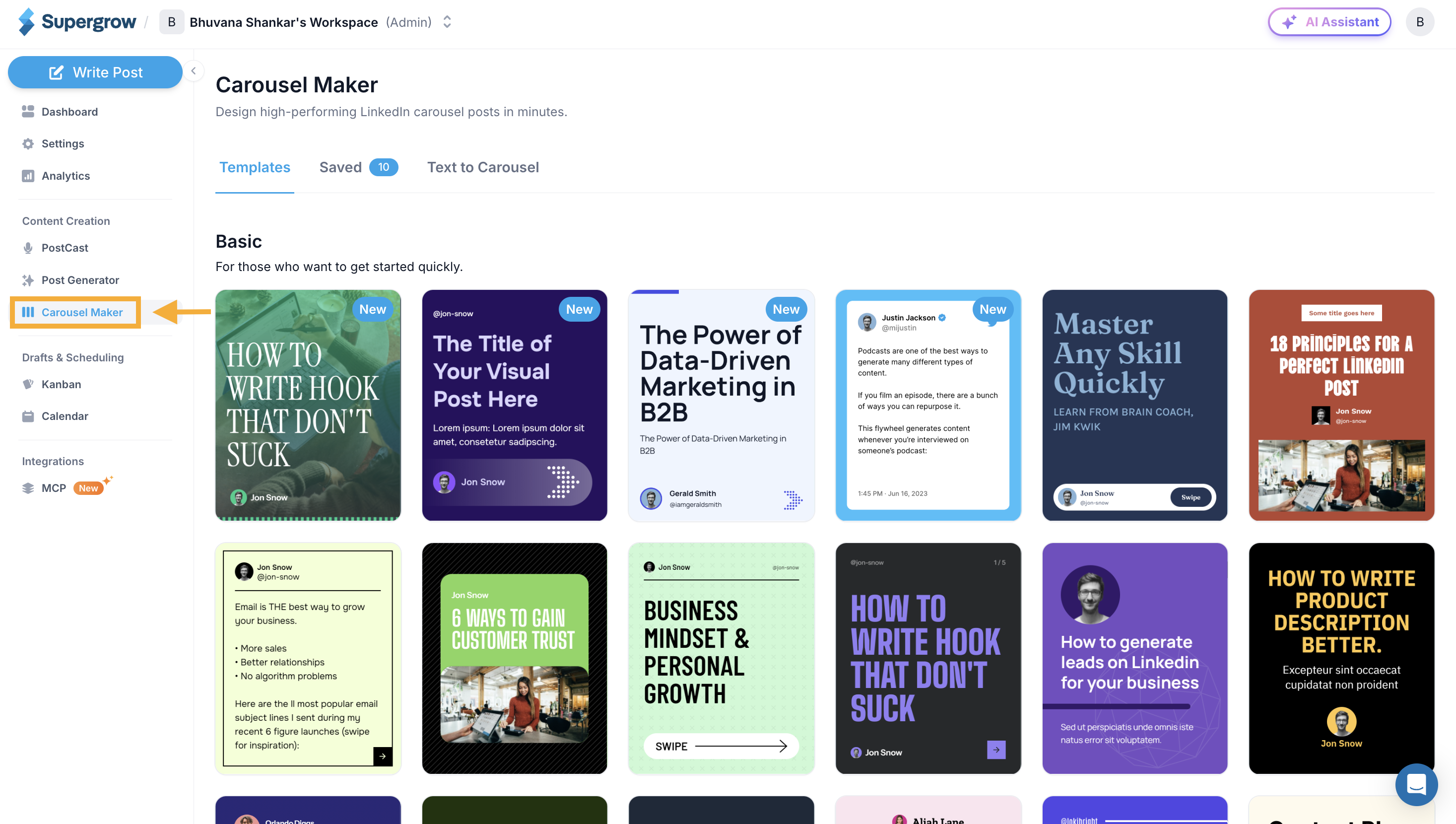
Click Carousel Maker in the left sidebar under "Content Creation"
You'll see the template selection screen
Step 2: Select Your Template
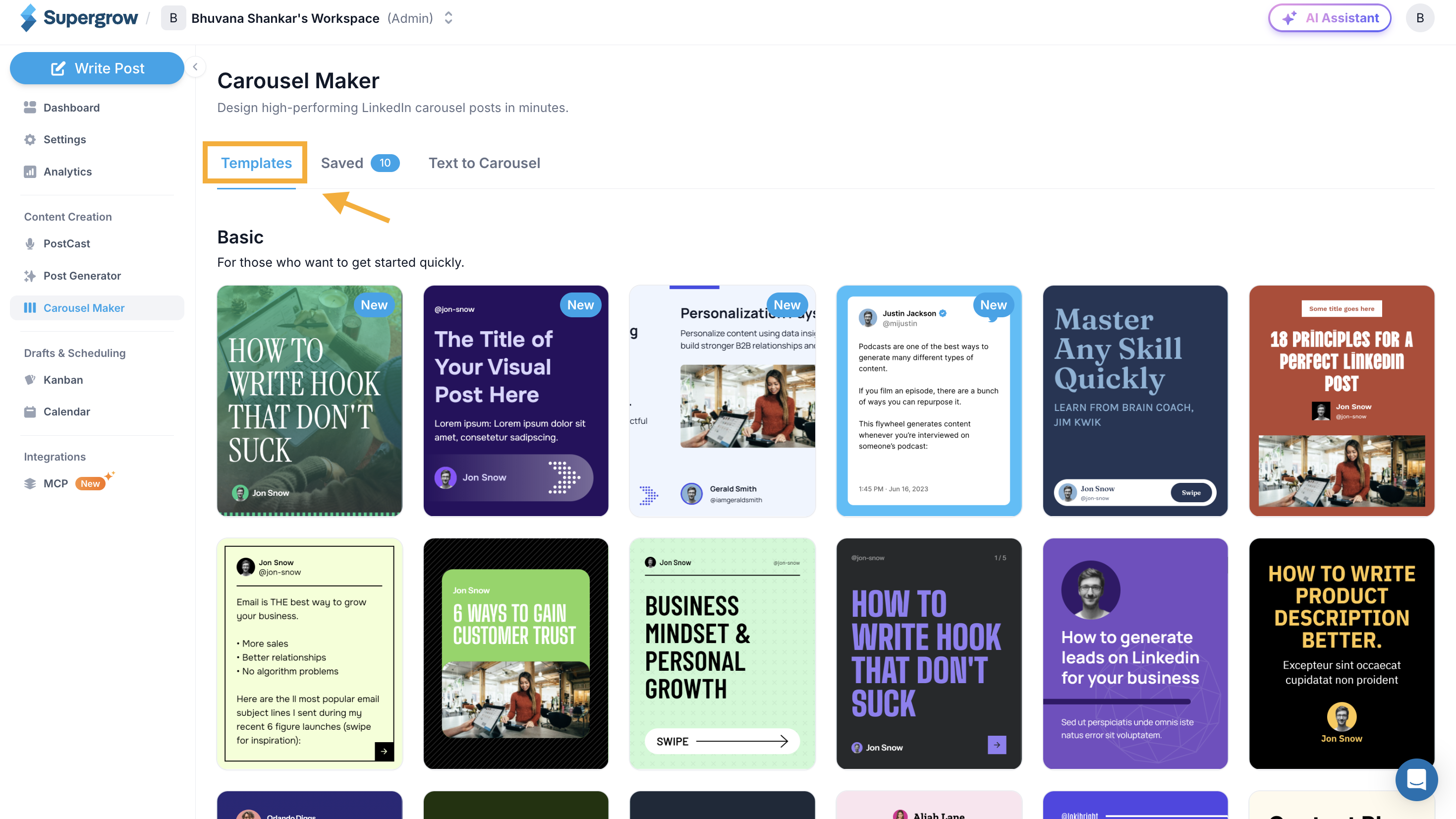
Browse the 15+ professionally designed templates
Hover over any template to preview all slides
Click on your chosen template
Step 3: Customize Your Brand Kit
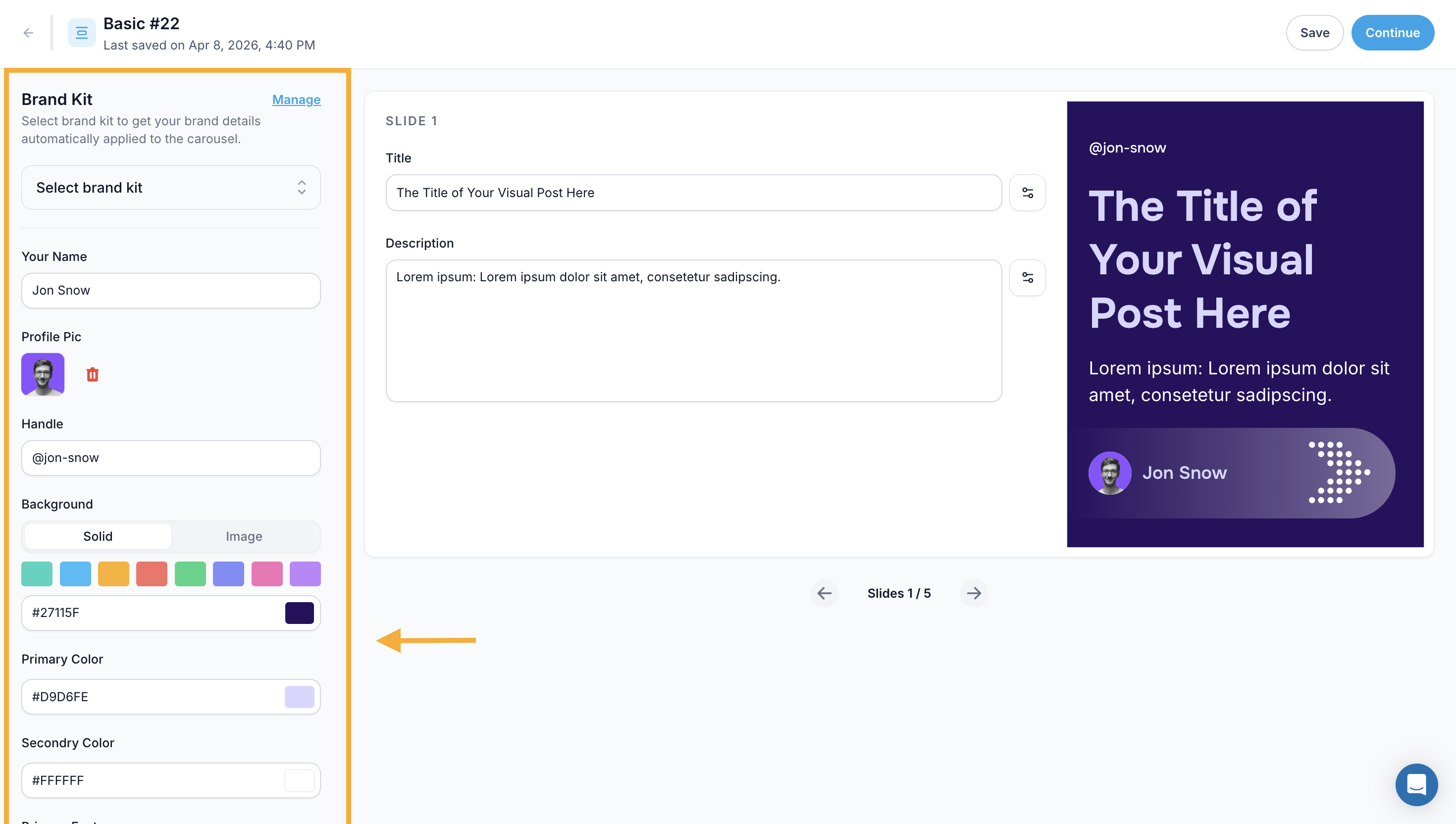
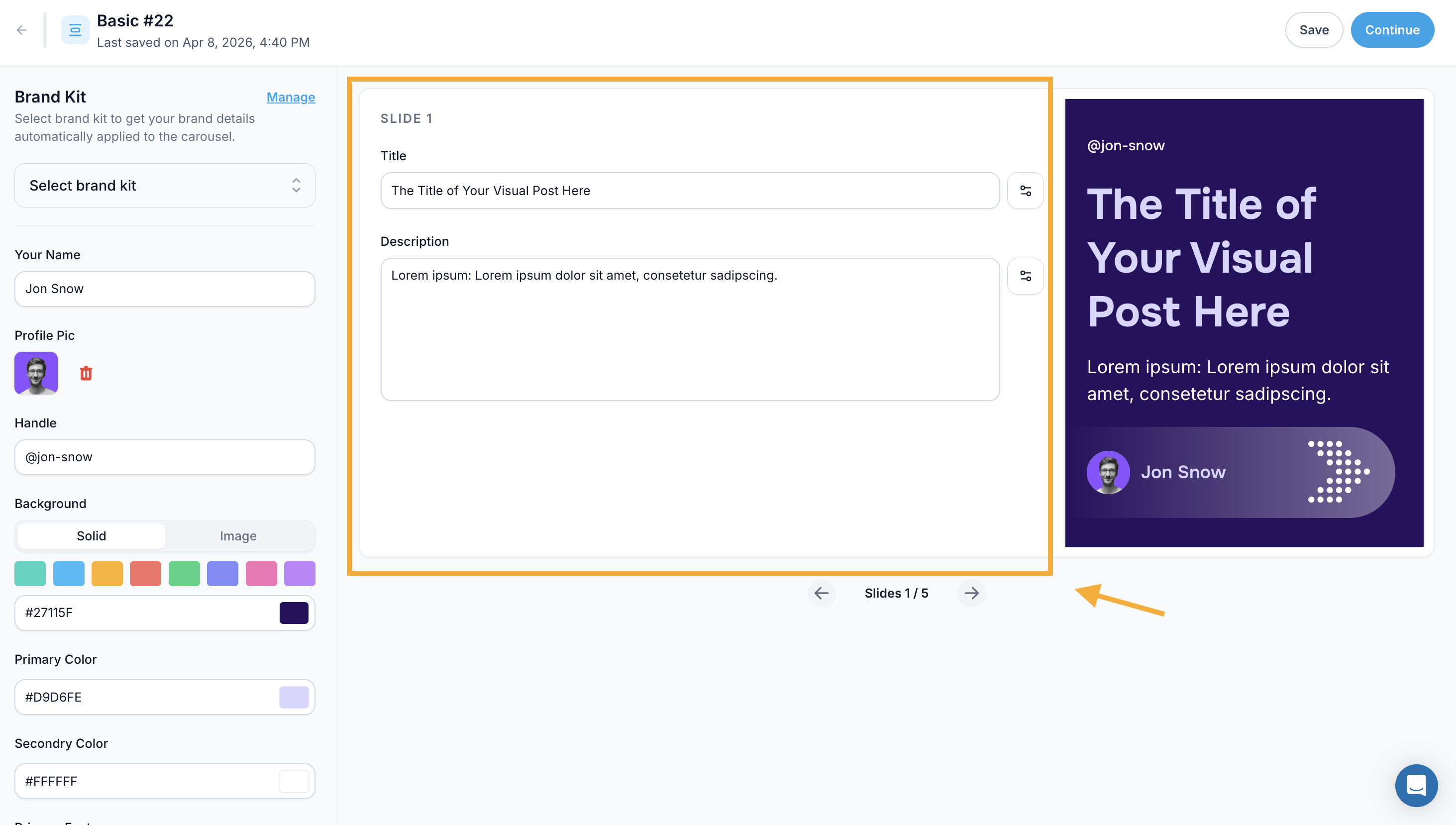
Left Panel: Brand Settings
Your Name : Enter your name for the carousel footer.
Profile Pic: Upload your profile photo (appears in footer).
Handle
Enter your LinkedIn handle.
@jon-snow
Background
Choose Solid (select color or enter hex code) or Image (upload custom background).
#243555
Primary Color
Enter your main brand color.
#87B3D7
Secondary Color
Enter your secondary color.
#FFFFFF
Fonts
Select Primary Font (e.g., Fraunces) and Secondary Font (e.g., Karla).
💡 Pro Tip: Click "Manage" to save your Brand Kit for future carousels.
Step 4: Add Content to Slides
Middle Panel: Slide Editor
Title
Enter the main heading (3-7 words ideal).
Master Any Skill Quickly
Description
Add supporting text (2-4 sentences).
Learn from brain coach, Jim Kwik
Step 5: Format Text (Optional)
Click the settings icon next to the text editor for:
Font family and size (e.g., 64px)
Text color and alignment
Bold (B) and Italic (I)
Step 6: Navigate and Manage Slides
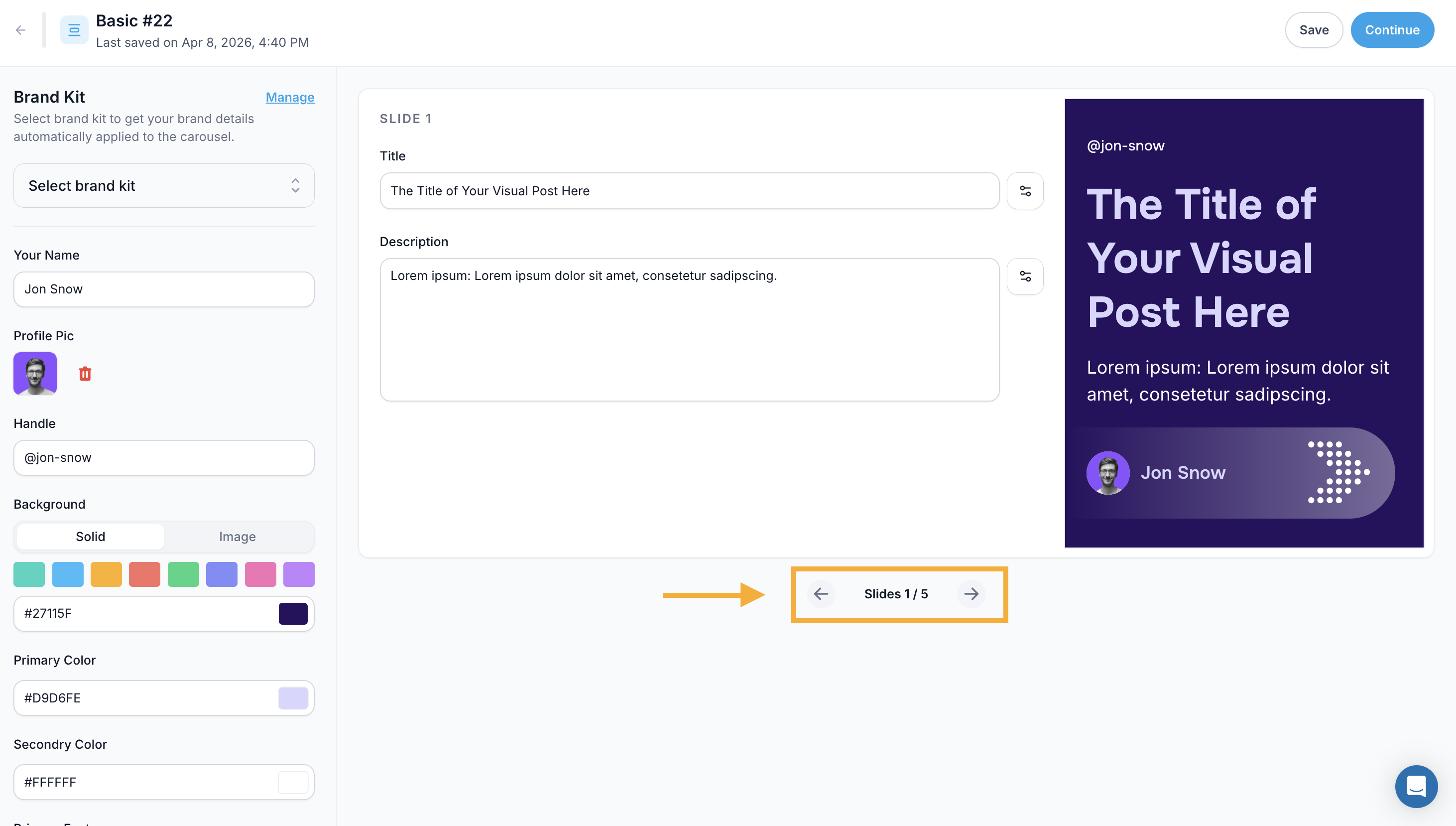
Bottom Navigation:
← → arrows to move between slides
Slide counter shows position (e.g., "Slides 1 / 5")
Slide Management:
Add Slide - Create a new blank slide
Duplicate - Copy current slide with formatting
Delete - Remove current slide (can't be undone)
Step 7: Preview Your Work
Right Panel: Live Preview
Watch your carousel update in real-time as you edit.
Check:
Text is readable
Colors have good contrast
Branding looks professional
Step 8: Final Preview and Title
Click "Continue" in the top right
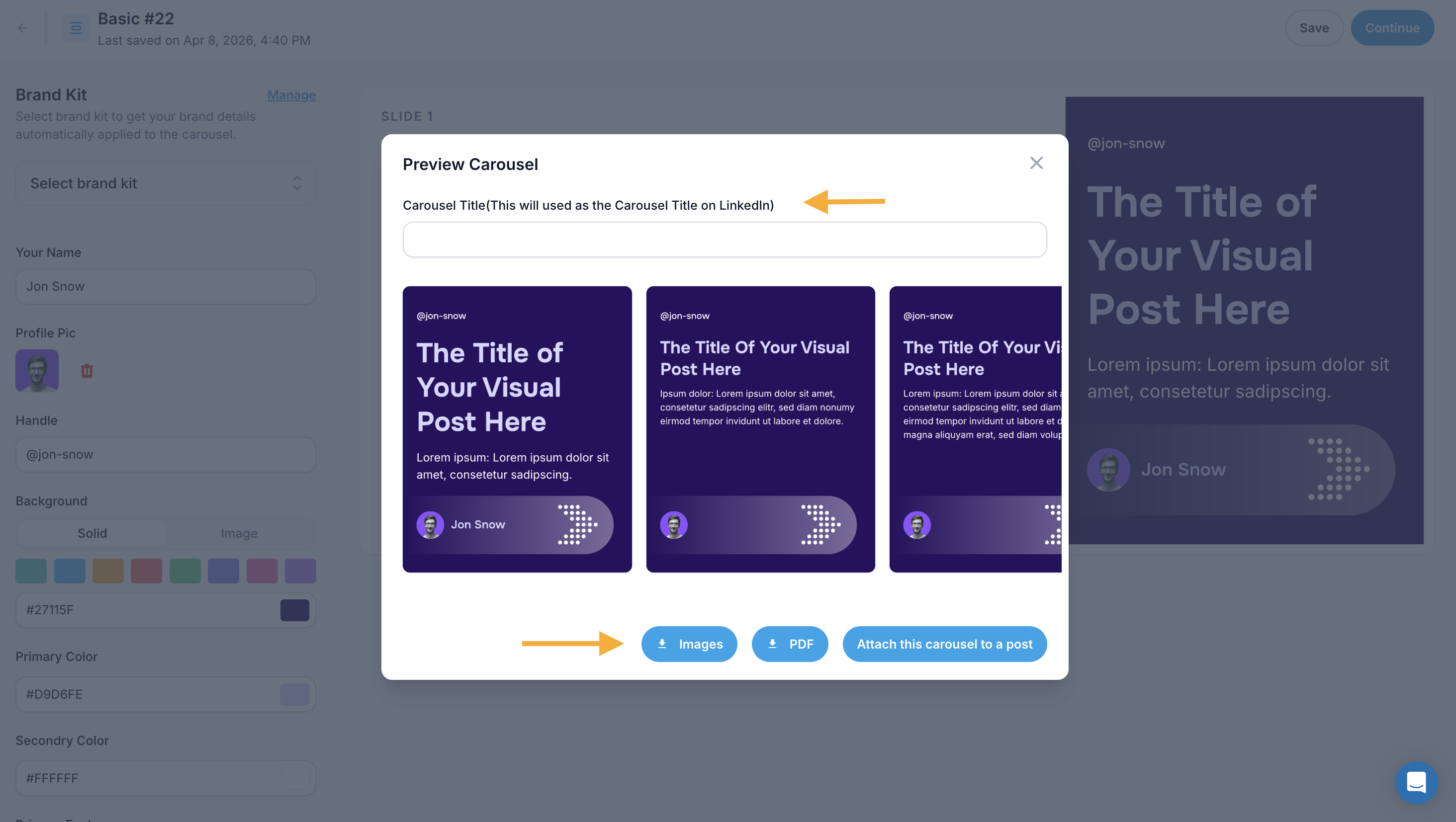
The Preview Carousel modal appears
Enter a Carousel Title (visible to your LinkedIn audience)
Review all slide thumbnails below the title
Step 9: Download or Publish
Choose one of three options:
Download as Images
Click "↓ Images"
Each slide as a separate file
Best for: Other platforms or presentations
Download as PDF
Click "↓ PDF"
Wait for "Creating PDF Carousel" to complete
All slides in one file
Best for: Manual LinkedIn upload
Attach to LinkedIn Post
Click "Attach this carousel to a post"
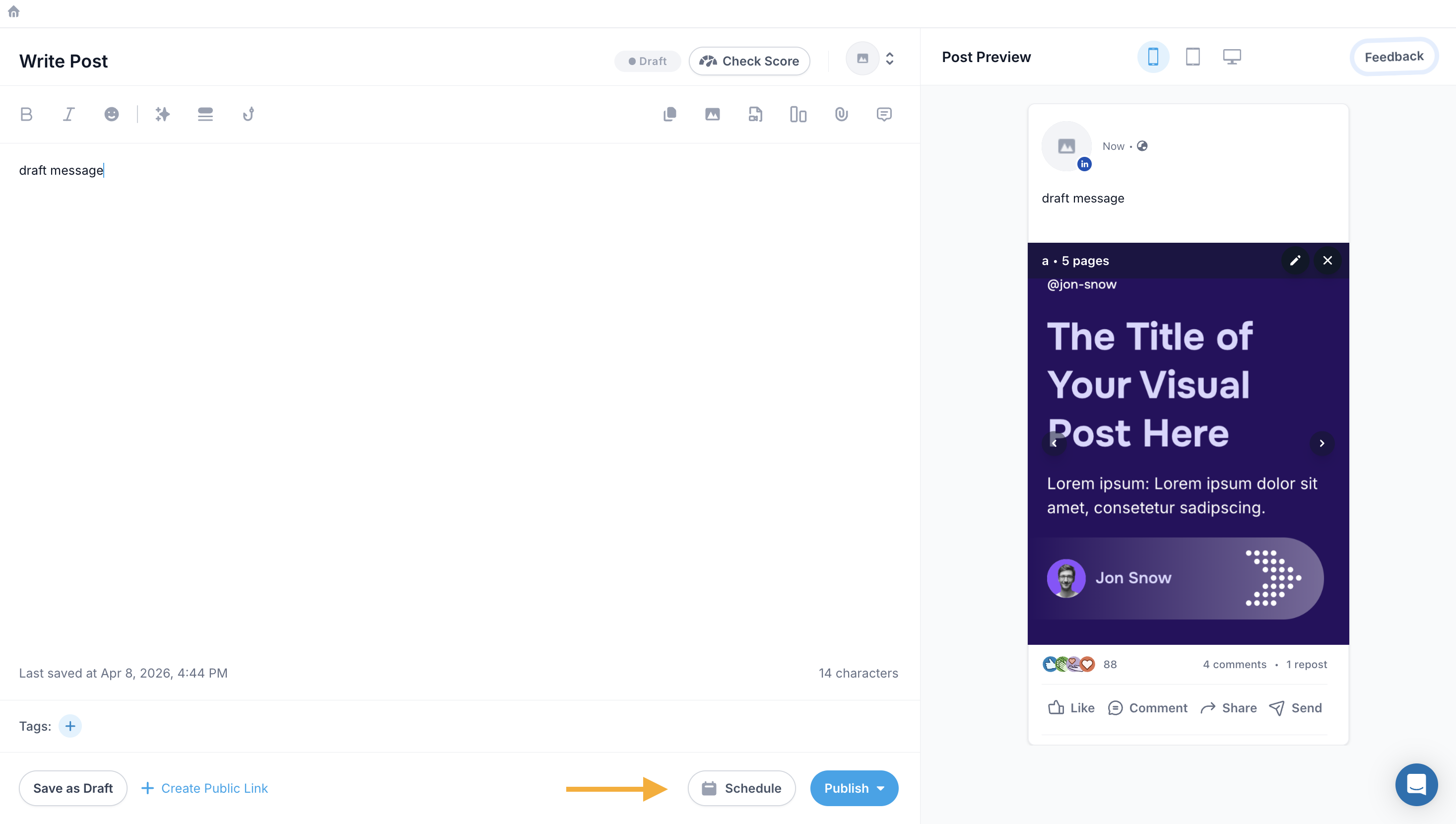
Opens Write Post editor
Carousel attached and ready to publish
Step 10: Write Your Post (If Publishing)
Add your caption in the main text area
Preview on the right panel
Choose Publish, Schedule, or Save as Draft
Caption example:
I spent 6 months mastering new skills faster than ever.
Here's the exact framework I used (swipe through →)
Which tip will you try first?