

Bulk Import Content Using CSV
The Bulk Import feature in Supergrow allows you to upload content in bulk using a CSV file and add that content as Drafts directly into team members’ workspaces.
This is especially useful when:
You write content outside Supergrow (Docs, Notion, Sheets, AI tools)
You want to add content for multiple team members at once
You don’t want to open each workspace manually
What bulk import does
With bulk import, you can:
Upload multiple posts at once
Assign each post to a specific team member
Save all imported content as Drafts
Skip workspace-by-workspace creation
Nothing is published automatically.
Everything stays safely in Draft.
Step-by-Step: How bulk import works
Step 1: Prepare your CSV file
Create a CSV file with your content
Each row should represent one post
Follow the sample CSV format provided below
You do not need to map posts to team members at this stage.
Step 2: Upload the CSV file
Log in to Supergrow
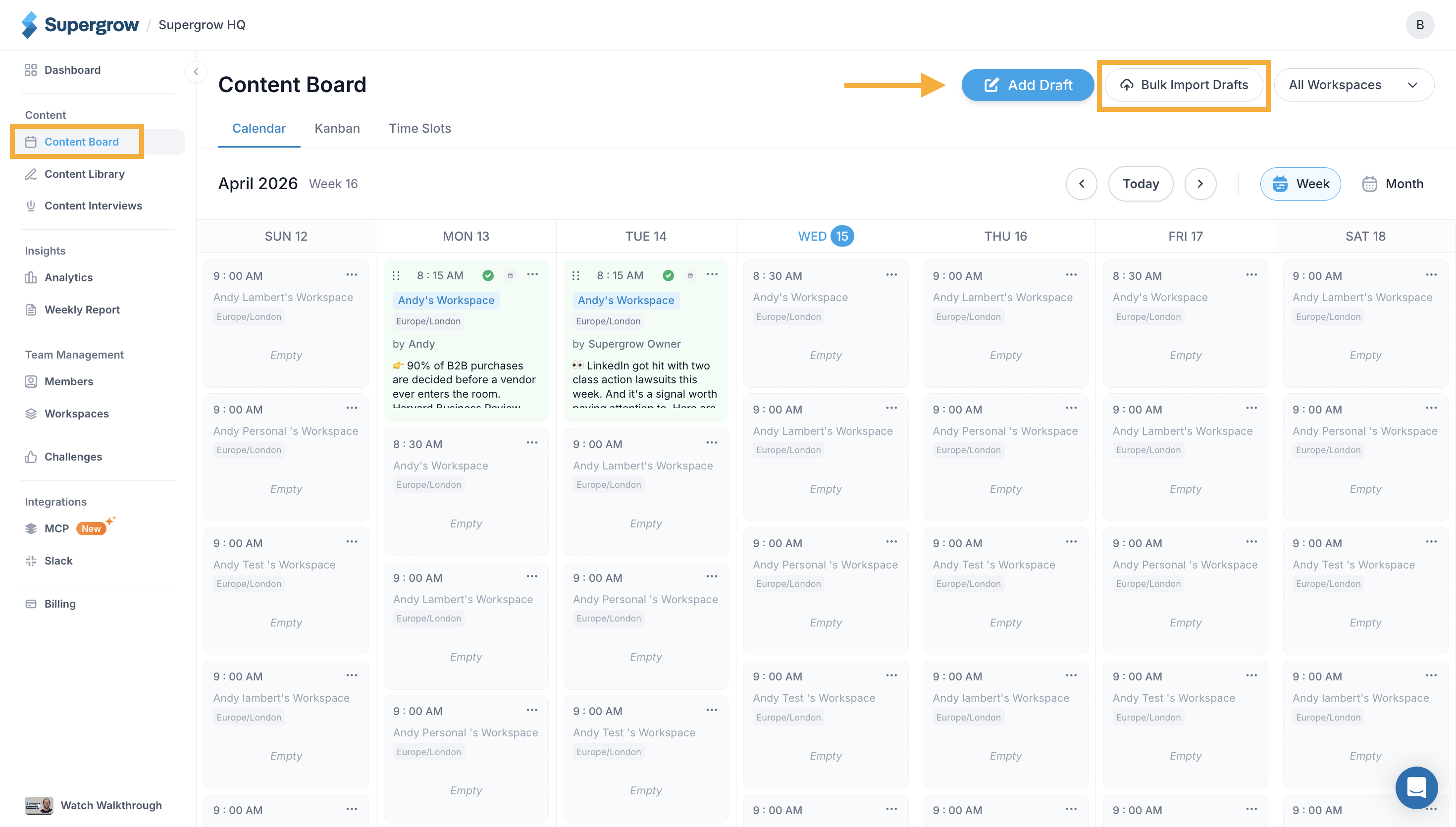
Navigate to the Content Board from the left-side menu
Click on "Bulk Import Drafts" button
Upload your CSV file
Supergrow will validate:
File format
Required fields
Content structure
If there are issues, you’ll be prompted to fix them before moving forward.
Step 3: Map posts to team members (after upload)
Once the CSV is uploaded successfully:
You’ll be asked to map each post to a team member
Select the team member whose workspace the post should go into
This ensures:
Correct ownership
Clean approvals later
Accurate analytics and tracking
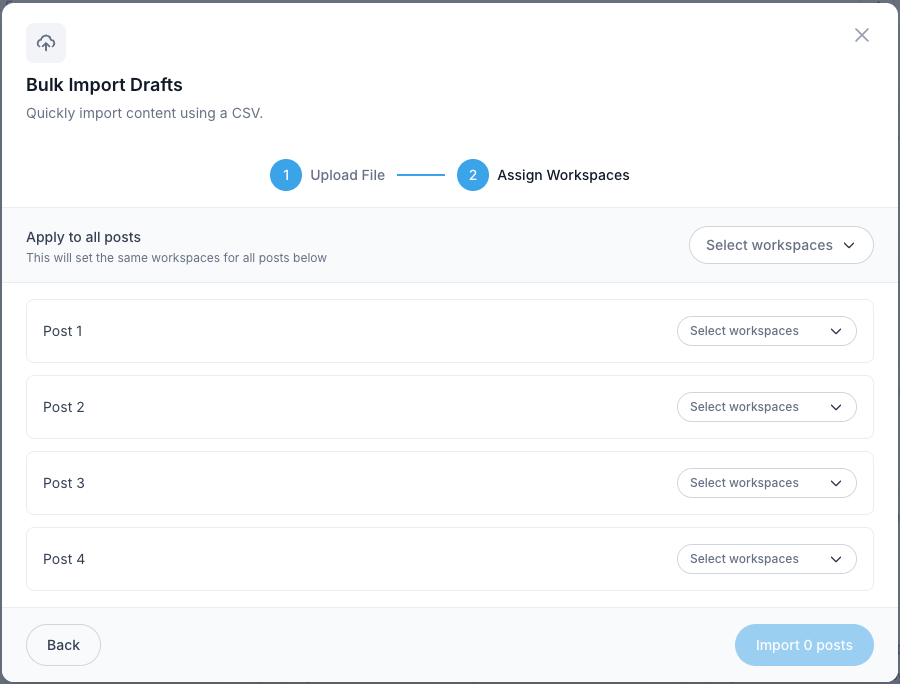
Step 4: Complete the Import
Confirm the mapping
Complete the import
Supergrow will:
Add all posts as Drafts
Place them inside the selected team members’ workspaces
No approvals, scheduling, or publishing happens automatically.
What happens after import
After bulk import:
Drafts are visible in the respective workspaces
Content can be:
Edited
Sent for approval
Scheduled using the Content Calendar
Bulk Import fits seamlessly into existing workflows.